


X PhotoKit
4.31.14K Reviews
App Specs
- Version
- 4.7.1
- Updated On
- License
- Free
- Downloads
- 50,000,000+
- Developer
- X PhotoKit
- Categories
- Photography
- Platform
- Android
Screenshots

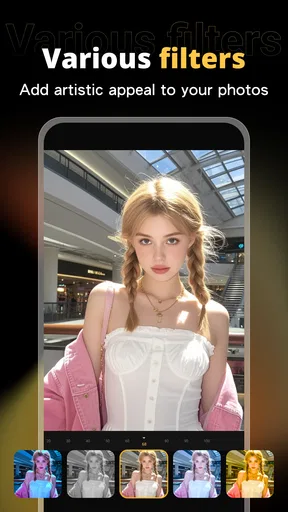

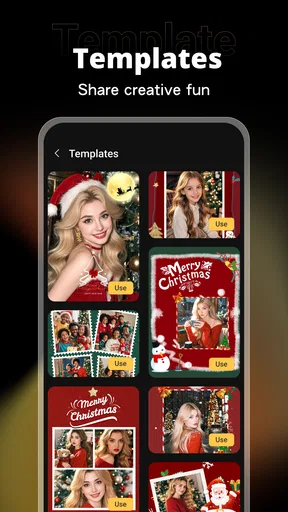

 Analysis by AppCompare
I often reach for a phone editor when I want to fix one picture quickly, not learn a complicated desktop workflow. X PhotoKit is aimed at that kind of everyday use: it brings photo adjustments, creative add-ons, collages, and AI face-swap tools into a single photography app. The appeal is convenience, but the real question is whether having several kinds of editing together makes a task easier—or leaves the experience feeling crowded.
Choosing the right starting point
My first practical tip is to decide what the finished image is for before opening the tools. A portrait for a family chat needs a different touch from a collage for a birthday post. Starting with that decision helps me avoid piling on effects just because they are available. For a natural-looking result, I make small corrections first; for something playful, I treat stickers, text, or a face swap as the main idea rather than adding them as an afterthought.
That distinction matters because a multi-purpose editor is not automatically the best choice for every photo. If I only need to crop or brighten an image, the phone’s built-in editor may be quicker. If I want a more involved composition, X PhotoKit offers more room to experiment without moving between separate apps. I see it as a handy creative workspace, not a replacement for every specialist tool.
A realistic edit from camera roll to post
Imagine I have taken several pictures at a weekend get-together and want one polished image to send to friends. I would choose the sharpest frame first, make restrained light and contrast adjustments, then check whether a filter improves the mood without making skin tones look unnatural. If a small distraction pulls attention away from the people, I can try a retouching tool, but I would compare the result at normal viewing size as well as zoomed in: edits that look clean close up can still feel odd when viewed as a whole.
For a group recap, a collage may be more useful than trying to force several moments into one edited photo. I would select images with different angles or expressions, then keep the layout simple enough that each one remains readable on a phone screen. Text can supply a date or a short caption, while stickers and doodles work best when they support the occasion rather than compete with the faces. This small order of operations—select, correct, arrange, decorate, review—keeps the result from becoming visually busy.
Where face swap and batch edits fit
AI face swap is better treated as a novelty or a deliberate creative choice than as a routine portrait fix. Before sharing a result, I would look closely at the join around the face, the lighting, and whether the expression still fits the body and scene. A mismatch can be funny among friends but distracting in a photo intended to look natural. I would also make sure everyone involved is comfortable with the edit, especially before posting it publicly.
Batch processing has a different strength: consistency. When I have several pictures from the same occasion, applying a similar treatment can make them feel like a set. It is still worth checking each frame individually afterward, since different lighting or backgrounds can make one shared adjustment look too strong on some images. I would use batch editing to establish a starting look, then make selective corrections rather than assuming every photo needs exactly the same finish.
Worth Reading Before You Choose

EA SPORTS FC Mobile 26 Is a Bigger Football Game, but It Takes Time

Flipboard Shows What News Apps Must Do Beyond the Feed

Switching to Android Auto Means Rethinking Your Driving Routine

Google Calendar Makes a Crowded Week Easier to Manage

Ludo King Makes the Most of the Minutes Between Plans

Baby Panda World Brings Quick Play to Modern Phones, but Its Game Library Feels Busy
Getting Started with Ease
First things first, downloading and setting up X PhotoKit is as smooth as butter. Once you have it on your device, you’re greeted with a user-friendly interface that doesn’t require a PhD to navigate. I love how intuitive everything is—perfect for both newbies and seasoned photo editors. You can jump right into the action without any fuss.
Feature-Packed Editing Tools
Now, onto the juicy part—the editing tools. X PhotoKit offers a wide array of options to play around with, from basic adjustments like brightness and contrast to more advanced features such as layer blending and masking. One of my personal favorites is the array of filters. They’re not your typical Instagram filters; these add a professional touch to your images, making them pop in a matter of seconds.
If you’re into more detailed edits, the app also provides tools for retouching, which are perfect for those pesky blemishes or unwanted objects in your shots. It feels like having a mini Photoshop in your pocket! The precision of the editing tools is impressive, allowing for seamless modifications without any noticeable distortions.
Creative Enhancements and Fun Extras
But wait, there’s more! X PhotoKit doesn’t just stop at the basics. It includes creative enhancements like text overlays, stickers, and even some playful doodles to add a unique flair to your photos. Whether you’re creating a meme or a heartfelt message, these features provide endless possibilities.
Another standout feature is the batch processing option. If you’re like me and have a ton of photos to edit, this is a lifesaver. You can apply the same edits to multiple photos at once, saving you heaps of time. It’s perfect for those who love to document every moment but don't want to spend forever editing each shot individually.
Seamless Sharing and Saving Options
After crafting your masterpiece, sharing it is a cinch. The app integrates seamlessly with social media platforms, allowing you to post directly from the app. Plus, the saving options are versatile, supporting various file types and resolutions. This flexibility ensures your photos maintain their quality whether you’re printing them or posting online.
How it compares with a single-purpose editor
Against the usual alternatives, the main trade-off is breadth versus focus. A dedicated collage maker may offer a more concentrated layout workflow, while a specialist portrait editor may suit someone who wants to spend most of their time refining faces. A built-in phone editor is often the fastest route for a simple crop or exposure correction. I would choose this app when I want to move between ordinary adjustments and playful composition in one place, rather than when I need the deepest controls for one narrow task.
That all-in-one approach is especially useful for casual creators, parents assembling a small family recap, and anyone who makes quick social posts from camera-roll photos. It is less compelling for a photographer who depends on a strict, repeatable color process or needs a carefully managed professional editing pipeline. In that situation, I would keep a specialist editor for the serious work and use this one for quick ideas, collages, or humorous edits.
Practical checks before saving
One useful habit is to keep an untouched copy of a photo before making a strong retouch or face swap. That gives me a clear reference when an edit begins to drift from the original, and makes it easier to choose a lighter treatment. I also review the final image at the size where it will actually be seen: a small caption can be legible on a phone but crowded in a collage, while a subtle retouch may look much stronger after the image is reduced.
For a set of pictures, I would settle on the visual direction with one image before using batch processing. That way, I can judge whether the filter or adjustment suits the lighting and colors of the occasion, rather than discovering after applying it widely that the look is too heavy. A shared edit is a time-saver, not a guarantee of a matching result, so a quick individual pass still earns its place.
Cost, compatibility, and who should try it
The app is free to install, though in-app purchases are offered at prices ranging from $7.99 to $15.99 per item. I would begin with the free experience and only consider paying if a specific tool or workflow becomes part of my regular routine. That is a sensible way to judge whether the extras matter to you instead of assuming that every feature is necessary. It is rated for Everyone, and the current version is 4.5.7; it runs on operating systems starting at version 7.0.
X PhotoKit is published by X PhotoKit, and its reach suggests that plenty of people have found a reason to try it: it has more than 50 million installs, around 90 thousand ratings, and an average score of 4.2. Those figures are useful context, not a promise that every tool will fit your taste. I would recommend trying it if you want a flexible phone-based toolkit for portraits, collages, and quick creative experiments. If you prefer a minimal interface or need specialist-level control for every adjustment, a narrower editor may suit you better.
What I would expect from the finished result
Before sharing, I would check the exported image in the place it is meant to go. A social post, a message, and a print do not all reward the same crop or amount of detail. When an edit is intended for a small screen, a clear subject and restrained decoration usually matter more than adding another effect. For printing, I would be more cautious about cropping and inspect the saved result rather than assuming that the editing view tells the whole story.
For people wondering whether this is only for selfies, I would say no: its appeal also lies in arranging multiple photos and giving ordinary snapshots a bit of character. But if the goal is simply to preserve a documentary image with minimal alteration, I would stick to light corrections and skip the novelty tools. The range is most useful when I choose a purpose first, then leave out anything that does not help the picture communicate it.
In conclusion, X PhotoKit is a fantastic option for anyone looking to enhance their photo editing game. It's packed with features that cater to both beginners and advanced users, all wrapped up in an easy-to-use interface. Whether you're touching up a selfie or creating a digital artwork, this app has got you covered. So, if you’re looking for a reliable and fun photo editing app, X PhotoKit is definitely worth a try!
Pros
- User-friendly interface for quick edits.
- Wide range of filters and effects.
- Supports high-resolution images.
- Fast processing without lag.
- Regular updates with new features.
Cons
- Occasional in-app ads can be intrusive.
- Limited free features before paywall.
- Requires internet for some tools.
- No direct social media sharing.
- Some filters can be redundant.
FAQs for X PhotoKit
What features does X PhotoKit offer for photo editing?
X PhotoKit provides a comprehensive suite of editing tools that include filters, cropping, and adjustments for brightness, contrast, and saturation. Users can also apply effects, text overlays, and frames, making it versatile for both casual users and professional photographers seeking enhanced control over their edits.
Is X PhotoKit free to use, or does it require a subscription?
X PhotoKit offers a free version with basic features, but for access to the full range of tools and premium filters, a subscription is required. The app provides monthly and yearly subscription options, with a free trial period to explore premium features before committing.
How user-friendly is X PhotoKit for beginners?
X PhotoKit is designed with an intuitive interface that caters to both beginners and experienced users. It includes tutorials and tips to guide new users through its features, ensuring that anyone can quickly learn to navigate and utilize the app efficiently without prior experience.
Can I share my edited photos directly from X PhotoKit?
Yes, X PhotoKit has integrated sharing options that allow users to post their edited photos directly to social media platforms such as Instagram, Facebook, and Twitter. This seamless sharing capability makes it easy to showcase your creativity with just a few taps.
Does X PhotoKit support multiple image formats for editing?
X PhotoKit supports a wide range of image formats, including JPEG, PNG, and TIFF, ensuring compatibility with most photos users might want to edit. This flexibility is particularly beneficial for photographers who work with high-resolution images or require specific format support.


